
Configure domain redirect
What is a domain redirect?
A domain redirect is when a domain or subdomain automatically redirects visitors to another URL. For example, redirecting www.yourdomain.com to yourdomain.com or redirecting an old domain to a new one.
Redirect types
301 Redirect (Permanent):
- Indicates to search engines that the domain moved permanently
- Transfers SEO and ranking to the destination domain
- Recommended for permanent domain changes
302 Redirect (Temporary):
- Indicates the redirect is temporary
- Doesn't completely transfer SEO
- Useful for maintenance or temporary changes
Method 1: Redirect from cPanel
Step 1: Access cPanel
- Log in to your cPanel
- Look for the Domains section
Step 2: Open Redirects
- Look for and click on Redirects
Step 3: Configure the redirect
- Type: Select Permanent (301) or Temporary (302)
- Redirects to: Enter the destination URL (e.g.,
https://newdomain.com) - www. Redirection: Select if you want to redirect with or without www
- Wild Card Redirect: Enable if you want to redirect all subdomains
- Click Add
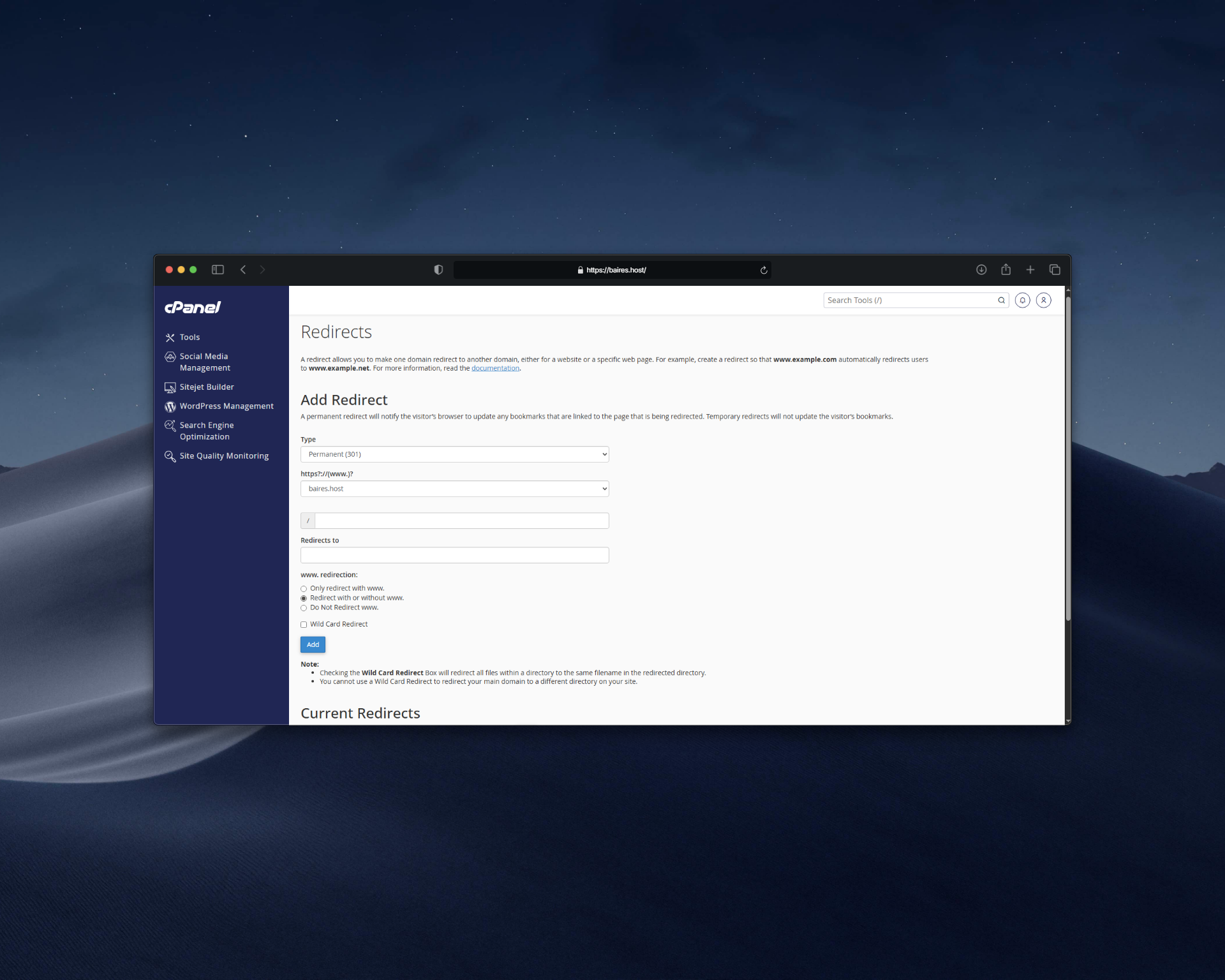 |
| Image 1: Configure redirect in cPanel. |
Method 2: Redirect with .htaccess (Apache)
If your server uses Apache, you can create redirects by editing the .htaccess file:
Step 1: Access File Manager
- In cPanel, look for File Manager
- Navigate to your domain's root folder (usually
public_html)
Step 2: Create or edit .htaccess
- If it doesn't exist, create a file called
.htaccess - If it exists, edit it
Step 3: Add redirect rules
Simple 301 redirect:
Redirect 301 / https://newdomain.comFull domain redirect:
RewriteEngine On
RewriteCond %{HTTP_HOST} ^(www\.)?olddomain\.com$ [NC]
RewriteRule ^(.*)$ https://newdomain.com/$1 [R=301,L]
Redirect www to non-www:
RewriteEngine On
RewriteCond %{HTTP_HOST} ^www\.(.*)$ [NC]
RewriteRule ^(.*)$ https://%1/$1 [R=301,L]
Redirect non-www to www:
RewriteEngine On
RewriteCond %{HTTP_HOST} !^www\. [NC]
RewriteRule ^(.*)$ https://www.%{HTTP_HOST}/$1 [R=301,L]
Method 3: Redirect with Nginx
If your server uses Nginx, edit the site configuration file:
server {
    listen 80;
    server_name olddomain.com www.olddomain.com;
    return 301 https://newdomain.com$request_uri;
}
Or to redirect www to non-www:
server {
    listen 80;
    server_name www.yourdomain.com;
    return 301 https://yourdomain.com$request_uri;
}
After editing, reload Nginx:
sudo systemctl reload nginxMethod 4: Redirect with DNS (CNAME)
For simple redirects, you can use a CNAME record pointing to another domain, although this is not a real HTTP redirect and may not work for all cases.
Verify that redirect works
Option 1: From browser
- Open your browser
- Enter the domain you configured to redirect
- You should be automatically redirected to the destination domain
- Verify that the URL changes in the address bar
Option 2: Use online tools
- httpstatus.io - Verifies HTTP status code
- redirect-checker.org - Verifies redirects
Option 3: Use curl from terminal
curl -I https://olddomain.comYou should see something like:
HTTP/1.1 301 Moved Permanently
Location: https://newdomain.com
Common issues
Redirect doesn't work
- Verify that configuration is saved correctly
- Wait a few minutes for changes to apply
- Clear browser cache
- Verify there are no syntax errors in .htaccess
Error 500 after configuring .htaccess
- Review .htaccess file syntax
- Verify there are no conflicts with other rules
- Try commenting out new rules to verify
- Restore a backup if necessary
Redirect loop
- Verify that the destination domain doesn't redirect back
- Review conditions in redirect rules
- Remove conflicting rules
Tips
- ✅ Use 301 redirect for permanent changes (better for SEO)
- ✅ Verify that redirect works before relying on it
- ✅ Keep a backup of .htaccess before editing it
- ✅ Test the redirect from different browsers
- ✅ Verify that the destination domain is working correctly
Need help?
If you're having trouble configuring a redirect or need help with configuration, open a ticket from the billing.baires.host panel or contact us for support.
You can also reach us through our social media:
- Instagram: @baires_host
- Discord (active support): https://discord.gg/dzjauatAFN
- Linktree: https://linktr.ee/baires.host


