
Configure DNS in cPanel
Access DNS Zone in cPanel
cPanel includes a tool to manage your domain's DNS records directly from the panel, without needing to access your registrar.
Step 1: Access cPanel
- Log in to your cPanel (usually:
https://yourdomain.com:2083) - Log in with your credentials
Step 2: Open Zone Editor
- In the Domains section, look for Zone Editor
- Click on the icon
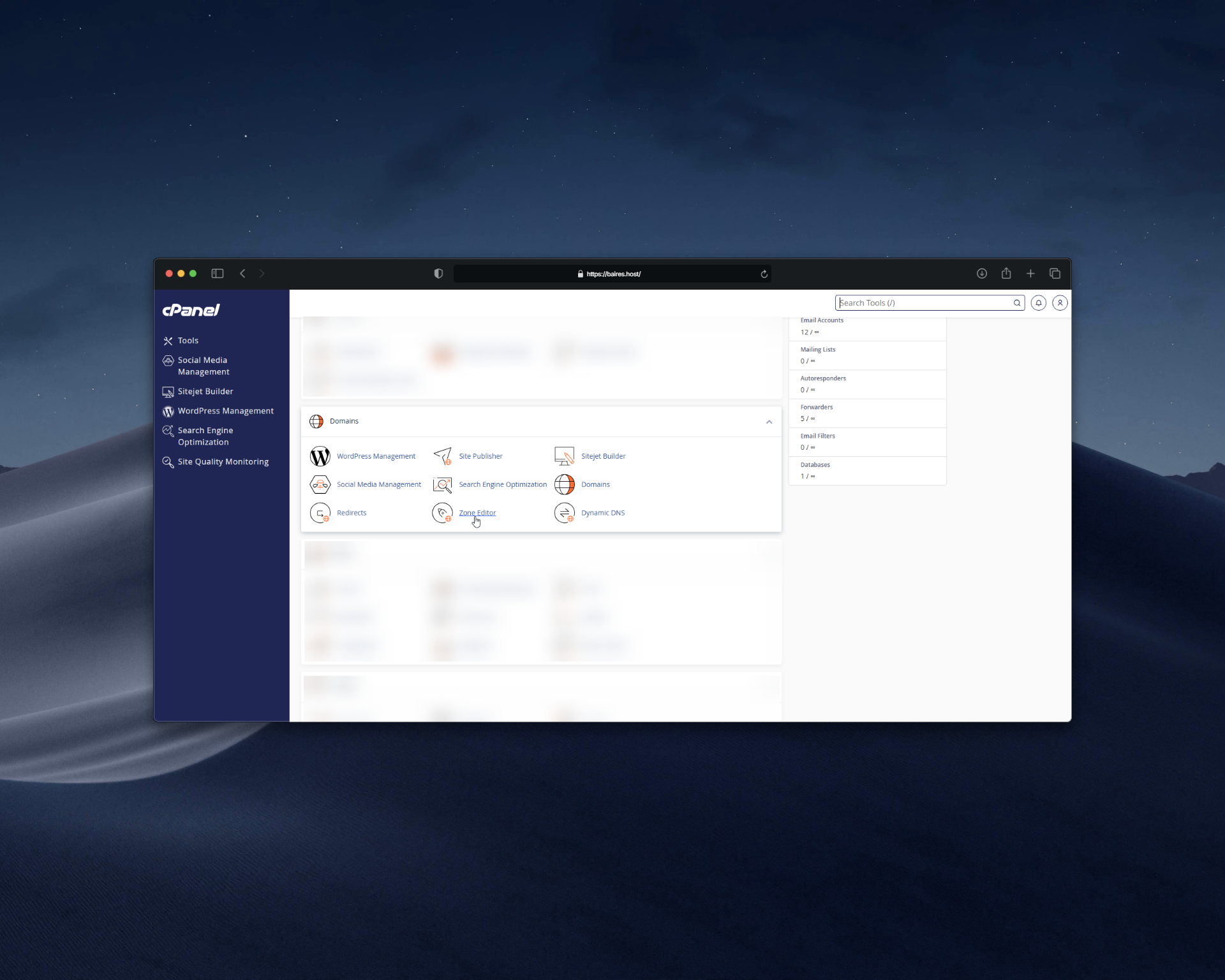 |
| Image 1: DNS Zone Editor in cPanel. |
Step 3: Select the domain
You'll see a list of domains. Select the domain for which you want to manage DNS.
Add A record
- Click + A Record or Add A Record
- Fill in the fields:
- Name:
@(for main domain) or subdomain name - Address: Your server's IP
- TTL: 14400 (or default value)
- Name:
- Click Add Record
Add CNAME record
- Click + CNAME Record
- Fill in the fields:
- Name: Subdomain name (e.g.,
www) - Canonical Name: Destination domain (e.g.,
yourdomain.com) - TTL: 14400
- Name: Subdomain name (e.g.,
- Click Add Record
Add MX record
- Click + MX Record
- Fill in the fields:
- Priority: The priority (10, 20, etc.)
- Destination: The mail server (e.g.,
mail.yourdomain.com) - TTL: 14400
- Click Add Record
Add TXT record
- Click + TXT Record
- Fill in the fields:
- Name:
@(for SPF) or_dmarc(for DMARC) orselector._domainkey(for DKIM) - Record: The TXT record value (e.g.,
v=spf1 ip4:23.175.40.20 ~all) - TTL: 14400
- Name:
- Click Add Record
Edit or delete records
To edit an existing record:
- Find the record in the list
- Click the edit icon (pencil) next to the record
- Modify the values
- Save the changes
To delete a record:
- Find the record in the list
- Click the delete icon (trash) next to the record
- Confirm the deletion
Verify changes
After making changes, you can verify with:
- Online tools like whatsmydns.net
- Commands from terminal:
nslookup yourdomain.com - Wait a few minutes for changes to propagate
Common issues
I can't see Zone Editor
- Verify that you have admin permissions in cPanel
- Some hosting plans don't include Zone Editor access
- Contact support if the option doesn't appear
Changes don't apply
- Verify that you saved changes correctly
- Wait for DNS propagation to complete
- Verify there are no syntax errors in records
Tips
- ✅ Backup your DNS configuration before making changes
- ✅ Verify record syntax before saving
- ✅ Don't delete important records without verifying first
- ✅ Use recommended TTL (14400) unless you have a specific reason to change it
Need help?
If you're having trouble configuring DNS in cPanel, open a ticket from the billing.baires.host panel or contact us for support.
You can also reach us through our social media:
- Instagram: @baires_host
- Discord (active support): https://discord.gg/dzjauatAFN
- Linktree: https://linktr.ee/baires.host


