
Configure subdomain in DNS
What is a subdomain?
A subdomain is an additional part of the domain name created before the main domain. For example, if your domain is yourdomain.com, you can create subdomains like blog.yourdomain.com, mail.yourdomain.com, or www.yourdomain.com.
What are subdomains used for?
Subdomains are useful for:
- ✅ Separating different services (blog, store, API, etc.)
- ✅ Organizing content by function or department
- ✅ Pointing to different servers or services
- ✅ Creating more friendly and organized URLs
Method 1: Use A record
This method points the subdomain directly to a specific IP address.
Step 1: Access the DNS panel
- Log in to the panel where you manage your DNS
- Look for the DNS or DNS Zone section
Step 2: Add A record for subdomain
- Click Add Record or Add
- Select type A
- Fill in the fields:
- Name/Host: The subdomain name without the domain (e.g.,
blog,mail,api) - Value/IP: The IP of the server where you want it to point (e.g.,
23.175.40.20) - TTL: 3600 seconds (or default value)
- Name/Host: The subdomain name without the domain (e.g.,
- Save the changes
Example:
To create blog.yourdomain.com:
- Name:
blog - Type: A
- Value:
23.175.40.20
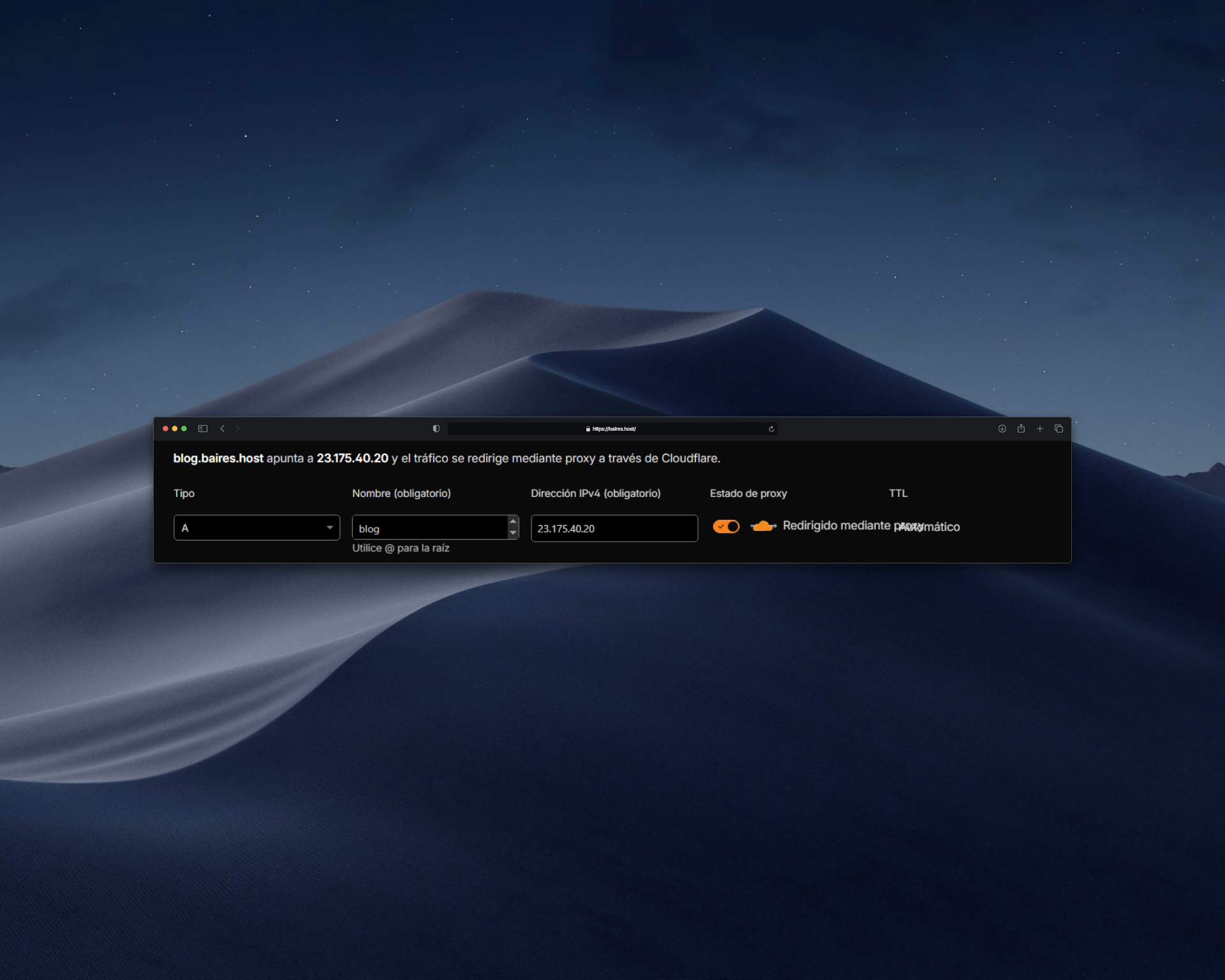 |
| Image 1: A record configuration example for subdomain. |
Method 2: Use CNAME record
This method points the subdomain to another existing domain or subdomain.
When to use it:
- When you want the subdomain to point to the main domain
- When the destination may change IP frequently
- For external services (CDN, third-party services)
Step 1: Add CNAME record
- Click Add Record
- Select type CNAME
- Fill in the fields:
- Name/Host: The subdomain name (e.g.,
www) - Value: The destination domain or subdomain (e.g.,
yourdomain.com) - TTL: 3600 seconds
- Name/Host: The subdomain name (e.g.,
- Save the changes
Common example:
To make www.yourdomain.com point to yourdomain.com:
- Name:
www - Type: CNAME
- Value:
yourdomain.com
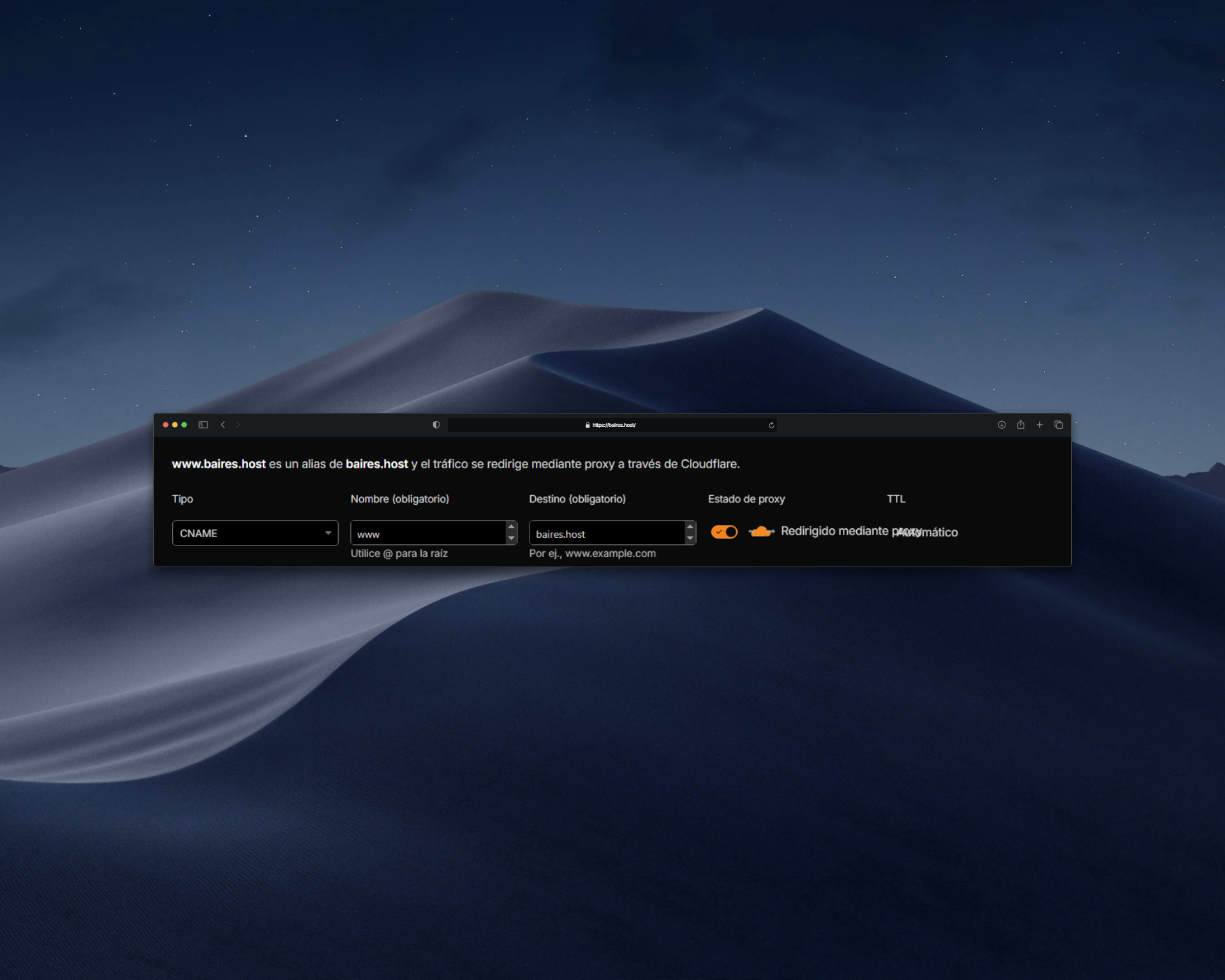 |
| Image 2: CNAME record configuration example for subdomain. |
Configure subdomain in cPanel
If you use cPanel, you can also create subdomains from the panel:
Step 1: Access cPanel
- Log in to your cPanel
- Look for the Domains section
Step 2: Create subdomain
- Click Subdomains
- Enter the subdomain name (without the domain)
- Select the main domain
- cPanel will automatically create the DNS record
- Click Create
Note: cPanel also automatically creates the folder for the subdomain on the server.
Verify that subdomain works
Option 1: Use ping
ping blog.yourdomain.comYou should see the IP the subdomain points to.
Option 2: Use browser
- Wait for DNS propagation to complete (15 minutes - 2 hours)
- Open your browser and type the subdomain
- You should see the configured content or service
Option 3: Use online tools
- whatsmydns.net - Verifies subdomain propagation
- dnschecker.org - Verifies subdomain DNS records
Common issues
Subdomain doesn't work after configuring it
- Verify that the DNS record is saved correctly
- Wait for DNS propagation to complete (can take up to 48 hours)
- Verify there are no syntax errors in the subdomain name
- Check that the IP or destination domain is correct
Error creating subdomain in cPanel
- Verify that the subdomain name is not already in use
- Make sure you have permissions to create subdomains
- Verify that the main domain is configured correctly
Subdomain points to wrong IP
- Verify that the A record has the correct IP
- If using CNAME, verify that the destination domain is correct
- Clear your computer's DNS cache
Tips
- ✅ Use descriptive names for your subdomains (blog, shop, api, etc.)
- ✅ Verify configuration before relying on the subdomain
- ✅ Use A record if the destination has a fixed IP
- ✅ Use CNAME record if the destination may change or is an external service
- ✅ You cannot have A and CNAME records for the same subdomain
- ✅ Subdomains can also have their own subdomains (e.g.,
api.blog.yourdomain.com)
Common usage examples
- www - www version of the site (usually CNAME to main domain)
- blog - Blog separate from main site
- shop - Online store
- mail - Mail server
- api - API or backend services
- cdn - Static content or CDN
- ftp - FTP server
Need help?
If you're having trouble configuring a subdomain or don't know which method to use, open a ticket from the billing.baires.host panel or contact us for support.
You can also reach us through our social media:
- Instagram: @baires_host
- Discord (active support): https://discord.gg/dzjauatAFN
- Linktree: https://linktr.ee/baires.host


