
Change domain nameservers
What are nameservers?
Nameservers are DNS servers that manage all DNS records for your domain. When you change nameservers, you're changing who controls your domain's DNS configuration.
When to change nameservers?
You can change nameservers when:
- ✅ You want another provider to completely manage your DNS
- ✅ You're migrating your domain to another hosting
- ✅ You want to use services like Cloudflare to manage your DNS
- ✅ Your current provider doesn't allow advanced DNS configuration
Prerequisites
Before changing nameservers, you need:
- ✅ The new provider's nameservers (usually provided by email or in the panel)
- ✅ Access to your domain registrar's panel
- ✅ Verify that the new provider has DNS records configured
Step 1: Get the new nameservers
Nameservers generally have this format:
ns1.provider.comns2.provider.com
Some providers use more nameservers (ns3, ns4, etc.).
Common examples:
- Cloudflare:
lola.ns.cloudflare.comandnick.ns.cloudflare.com(varies by account) - cPanel:
ns1.yourdomain.comandns2.yourdomain.com - Google Domains:
ns-cloud-a1.googledomains.comandns-cloud-a2.googledomains.com - baires.host:
ns1.baires.hostandns2.baires.host
Step 2: Access your registrar's panel
- Log in to the control panel where you purchased your domain
- Look for the Nameservers, DNS, or Name Servers section
Note: If you purchased the domain with baires.host, contact us for access or help with the change.
Step 3: Change nameservers
Method 1: From registrar panel
- Look for the Change nameservers or Edit Nameservers option
- Replace current nameservers with new ones
- Enter each nameserver in a separate field
- Click Save
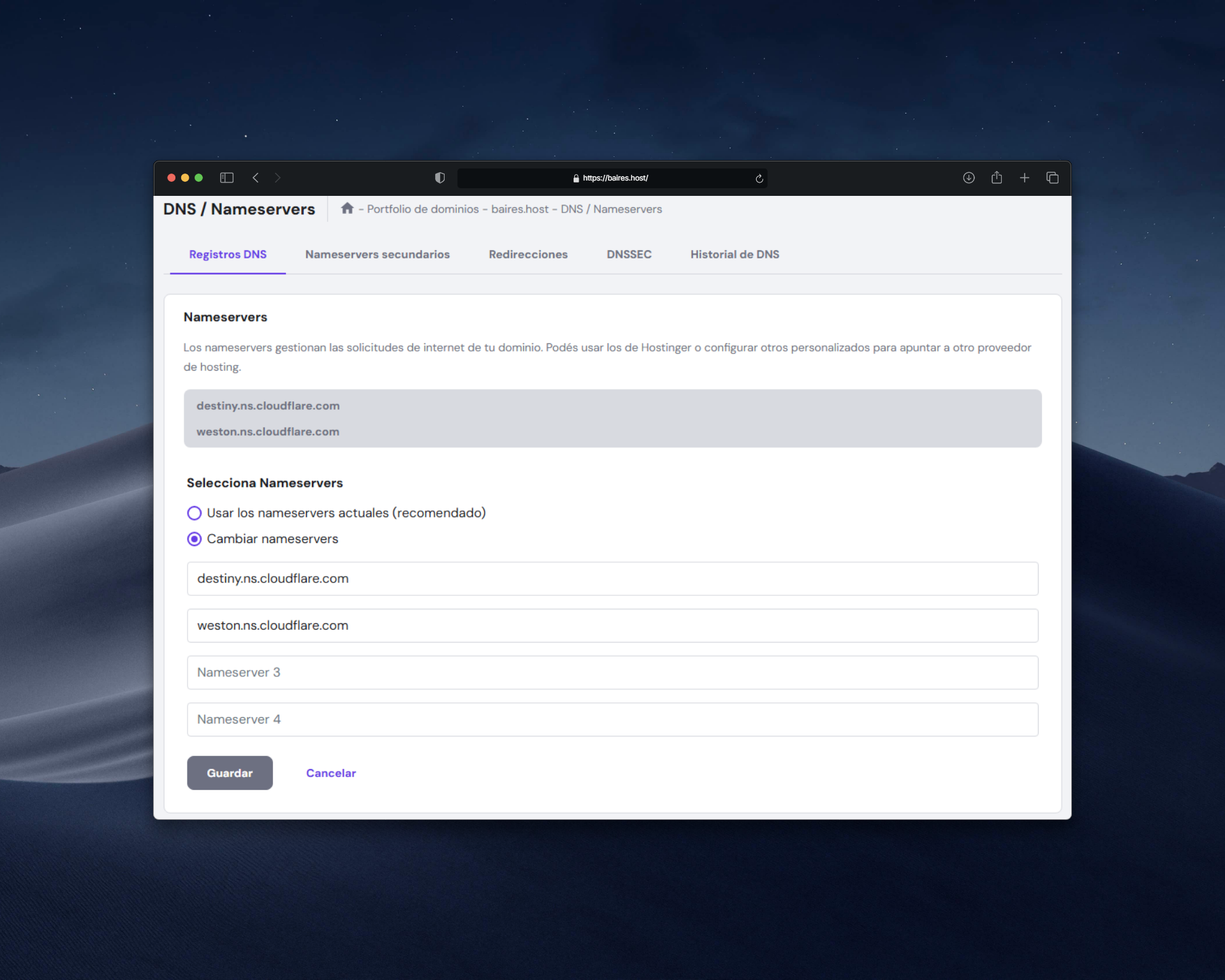 |
| Image 1: Example of changing nameservers in registrar panel. |
Method 2: Using custom DNS (some registrars)
Some registrars allow configuring custom DNS without completely changing nameservers. This is useful if you only want to change some records.
Step 4: Verify the change
After changing nameservers, you can verify with:
whois command:
whois yourdomain.comLook for the "Name Server" section.
Online tools:
- whois.net - Shows domain information including nameservers
- mxtoolbox.com - Verifies nameservers and other records
Propagation time
Nameserver changes can take:
- Minimum: 15 minutes - 2 hours
- Average: 4-8 hours
- Maximum: 48 hours
During this time, some users may see the old site and others the new one, depending on their location and the DNS server they use.
Common issues
Change doesn't apply after several hours
- Verify that nameservers are written correctly (no spaces, with dots)
- Check that you saved the changes in the panel
- Wait up to 48 hours (maximum propagation time)
- Verify that the domain is not locked or in transfer period
Error saving nameservers
- Verify that nameservers are valid and active
- Make sure to enter at least 2 nameservers
- Verify there are no syntax errors
- Some registrars require nameservers to be pre-registered
Site doesn't work after change
- Verify that DNS records are configured in the new provider
- Wait for propagation to complete
- Verify that the new provider's nameservers are working
- Check A, MX, etc. records in the new DNS panel
Important tips
- ⚠️ Before changing: Make sure you have all DNS records configured in the new provider
- ⚠️ Backup: Note or save a copy of your current DNS records before changing
- ✅ Verification: Verify that the new provider's nameservers are working before the change
- ✅ Timing: Make the change during low traffic hours if possible
- ✅ Patience: Wait for propagation to complete before making more changes
Revert the change
If you need to go back to previous nameservers:
- Log in again to your registrar's panel
- Change nameservers back to the originals
- Save the changes
- Wait for propagation (can take up to 48 hours)
Note: If you don't remember the previous nameservers, you can search them in the domain history or contact support.
Need help?
If you have questions about how to change nameservers or which values to use, open a ticket from the billing.baires.host panel or contact us for support.
You can also reach us through our social media:
- Instagram: @baires_host
- Discord (active support): https://discord.gg/dzjauatAFN
- Linktree: https://linktr.ee/baires.host


