
Verify DNS propagation
What is DNS propagation?
DNS propagation is the time it takes for DNS information to update across all DNS servers worldwide after making a change. This process can take anywhere from a few minutes to 48 hours, although it's usually faster.
Why verify propagation?
Verifying DNS propagation is important to:
- ✅ Confirm that your changes were applied correctly
- ✅ Identify configuration issues before they affect all users
- ✅ Know when your changes are fully active
- ✅ Diagnose connectivity problems
Method 1: Use online tools
whatsmydns.net
This tool shows DNS propagation status in multiple locations worldwide.
- Go to: https://www.whatsmydns.net
- Select the record type (A, AAAA, MX, CNAME, etc.)
- Enter your domain
- Click Search
You'll see a world map showing which DNS servers already have the changes and which don't yet.
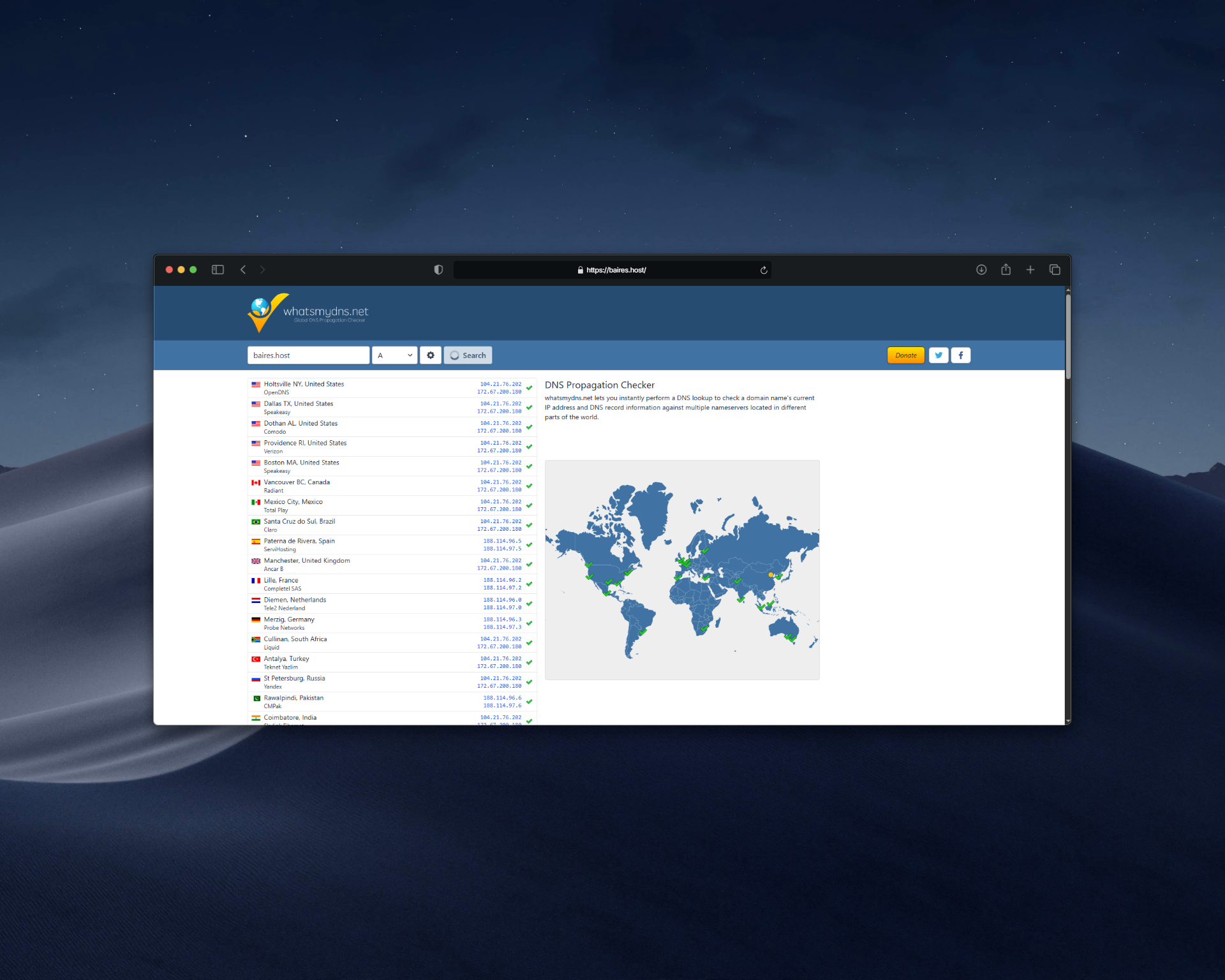 |
| Image 1: DNS propagation verification with whatsmydns.net. |
dnschecker.org
- Go to: https://dnschecker.org
- Select the record type
- Enter your domain
- Click Search
Shows detailed results from multiple DNS servers around the world.
mxtoolbox.com
- Go to: https://mxtoolbox.com
- Use DNS verification tools
- Especially useful for verifying MX, SPF, DKIM, DMARC records
Method 2: Use commands from terminal
nslookup command (Windows, macOS, Linux)
To verify A records:
nslookup yourdomain.comTo verify specific records:
nslookup -type=A yourdomain.com
nslookup -type=MX yourdomain.com
nslookup -type=CNAME www.yourdomain.com
dig command (Linux, macOS)
To verify A records:
dig yourdomain.comTo verify specific records:
dig A yourdomain.com
dig MX yourdomain.com
dig CNAME www.yourdomain.com
dig TXT yourdomain.com
To verify from a specific DNS server:
dig @8.8.8.8 yourdomain.comping command (verify connectivity)
ping yourdomain.comThis will show you the IP your domain resolves to.
Method 3: Verify from different locations
DNS changes can propagate at different speeds depending on geographic location. To verify from different DNS servers:
Google DNS (8.8.8.8):
nslookup yourdomain.com 8.8.8.8Cloudflare DNS (1.1.1.1):
nslookup yourdomain.com 1.1.1.1OpenDNS (208.67.222.222):
nslookup yourdomain.com 208.67.222.222Verify TTL (Time To Live)
TTL indicates how long DNS servers cache the information. A low TTL means faster changes but more DNS queries.
To see current TTL:
dig yourdomain.com +noall +answerYou'll see something like:
yourdomain.com. 3600 IN A 23.175.40.20The number 3600 is the TTL in seconds (1 hour).
Common issues
Changes don't propagate after several hours
- Verify that changes are saved correctly in the DNS panel
- Check for syntax errors in records
- Verify TTL (high values make propagation slower)
- Wait up to 48 hours (maximum propagation time)
Some servers show new value and others show old value
- This is normal during propagation
- Different DNS servers update at different speeds
- Wait for all servers to update
Domain doesn't resolve in any location
- Verify that DNS records are configured correctly
- Check that the domain is active and not expired
- Verify that nameservers are configured correctly
- Contact support if the problem persists
Tips to speed up propagation
- ✅ Reduce TTL before making changes (300-600 seconds)
- ✅ Make changes during low traffic hours
- ✅ Verify configuration before saving
- ✅ Use verification tools to monitor progress
- ✅ Consider using DNS services with fast propagation (Cloudflare, etc.)
Additional tools
- intoDNS.com - Complete DNS analysis
- dnsstuff.com - DNS diagnostic tools
- viewdns.info - DNS information and tools
- dnswatch.info - DNS change monitoring
Need help?
If DNS changes don't propagate after 48 hours or you have problems, open a ticket from the billing.baires.host panel or contact us for support.
You can also reach us through our social media:
- Instagram: @baires_host
- Discord (active support): https://discord.gg/dzjauatAFN
- Linktree: https://linktr.ee/baires.host


