
Configure MX records for email
What are MX records?
MX (Mail Exchange) records are DNS records that indicate which mail servers are responsible for receiving email messages for your domain. Without these records, you won't be able to receive emails at your domain.
Prerequisites
Before configuring MX records, you need:
- ✅ A configured mail server or email service (Gmail, Outlook, etc.)
- ✅ The mail server address (hostname or domain)
- ✅ Access to your domain's DNS management panel
Basic MX record configuration
Step 1: Access the DNS panel
- Log in to the panel where you manage your DNS (Cloudflare, cPanel, registrar, etc.)
- Look for the DNS or DNS Zone section
Step 2: Add MX record
- Click Add Record or Add
- Select type MX
- Fill in the fields:
- Name/Host:
@(for the main domain) or leave blank - Priority: A number (10, 20, 30, etc.). Lower number = higher priority
- Value/Server: The mail server hostname (e.g.,
mail.yourdomain.comorgmail-smtp-in.l.google.com) - TTL: 3600 seconds (or default value)
- Name/Host:
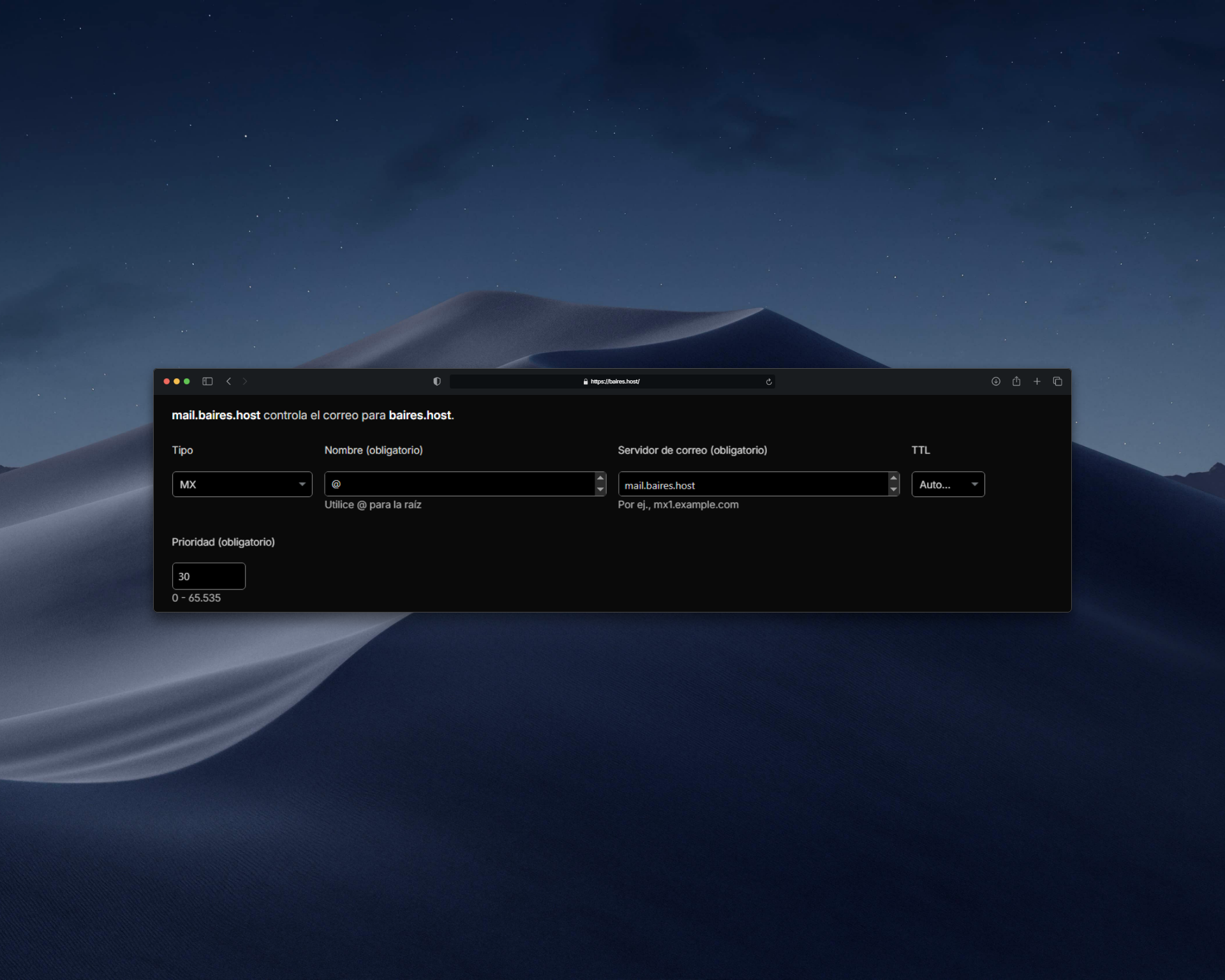 |
| Image 1: MX record configuration example. |
Configure multiple MX servers (recommended)
It's recommended to configure at least two MX servers with different priorities for redundancy:
Example with two servers:
- Record 1:
- Name:
@ - Priority:
10 - Value:
mail1.yourdomain.com
- Name:
- Record 2:
- Name:
@ - Priority:
20 - Value:
mail2.yourdomain.com
- Name:
The server with priority 10 will be the primary. If it's not available, the one with priority 20 will be used.
Configure email with Gmail/Google Workspace
If you use Google Workspace or Gmail for your domain:
- MX Record 1:
- Priority:
1 - Value:
aspmx.l.google.com
- Priority:
- MX Record 2:
- Priority:
5 - Value:
alt1.aspmx.l.google.com
- Priority:
- MX Record 3:
- Priority:
5 - Value:
alt2.aspmx.l.google.com
- Priority:
- MX Record 4:
- Priority:
10 - Value:
alt3.aspmx.l.google.com
- Priority:
- MX Record 5:
- Priority:
10 - Value:
alt4.aspmx.l.google.com
- Priority:
Configure email with Microsoft 365 / Outlook
If you use Microsoft 365 for your domain:
- MX Record:
- Priority:
0or10 - Value:
yourdomain-com.mail.protection.outlook.com(replace hyphens with dots)
- Priority:
Note: The exact value is provided by Microsoft when you configure the domain in the admin panel.
Configure email with your own server
If you have your own mail server:
- Step 1: Make sure your mail server is configured and running
- Step 2: Verify that the server hostname has an A record pointing to the server's IP
- Step 3: Add the MX record:
- Name:
@ - Priority:
10 - Value:
mail.yourdomain.com(or your server's hostname)
- Name:
Verify MX configuration
Option 1: Use command from terminal
Run in terminal:
nslookup -type=MX yourdomain.comOr with dig:
dig MX yourdomain.comOption 2: Use online tools
- mxtoolbox.com - Verifies MX records and other email records
- dnschecker.org - Verifies MX record propagation
- whatsmydns.net - Verifies DNS records globally
Common issues
I don't receive emails after configuring MX
- Verify that MX records are saved correctly
- Wait for DNS propagation to complete (can take up to 48 hours)
- Verify that the mail server is running and accessible
- Check that the server hostname has an A record configured
"Mail server not found" error
- Verify that the MX record value is a valid hostname, not an IP
- Make sure the hostname has an A record configured
- Verify there are no syntax errors in the record
Emails go to spam
- Also configure SPF, DKIM, and DMARC records
- Verify that your mail server has good reputation
- Check that you're not on blacklists
Tips
- ✅ Always use hostnames, never direct IPs in MX records
- ✅ Configure multiple MX servers with different priorities for redundancy
- ✅ Lower priority number = higher priority (10 is more priority than 20)
- ✅ Verify configuration before relying on it for critical email
- ✅ Consider using professional email services (Google Workspace, Microsoft 365) for better deliverability
Need help?
If you're having trouble configuring your MX records or don't know which values to use, open a ticket from the billing.baires.host panel or contact us for support.
You can also reach us through our social media:
- Instagram: @baires_host
- Discord (active support): https://discord.gg/dzjauatAFN
- Linktree: https://linktr.ee/baires.host


