
Configure DNS records A, AAAA, CNAME
What are DNS records?
DNS records are instructions that tell browsers and servers how to find your website or services. Each record type has a specific function for directing internet traffic.
A Record (Address)
The A record is the most common and is used to point a domain or subdomain directly to an IPv4 address.
When to use it:
- To point your main domain to your server
- To point subdomains to specific IPs
- To configure the root domain (@)
How to configure it:
- Type: A
- Name/Host:
@(for the main domain) or the subdomain name (e.g.,www,blog) - Value/IP: Your server's IPv4 address (e.g.,
23.175.40.20) - TTL: 3600 seconds (or default value)
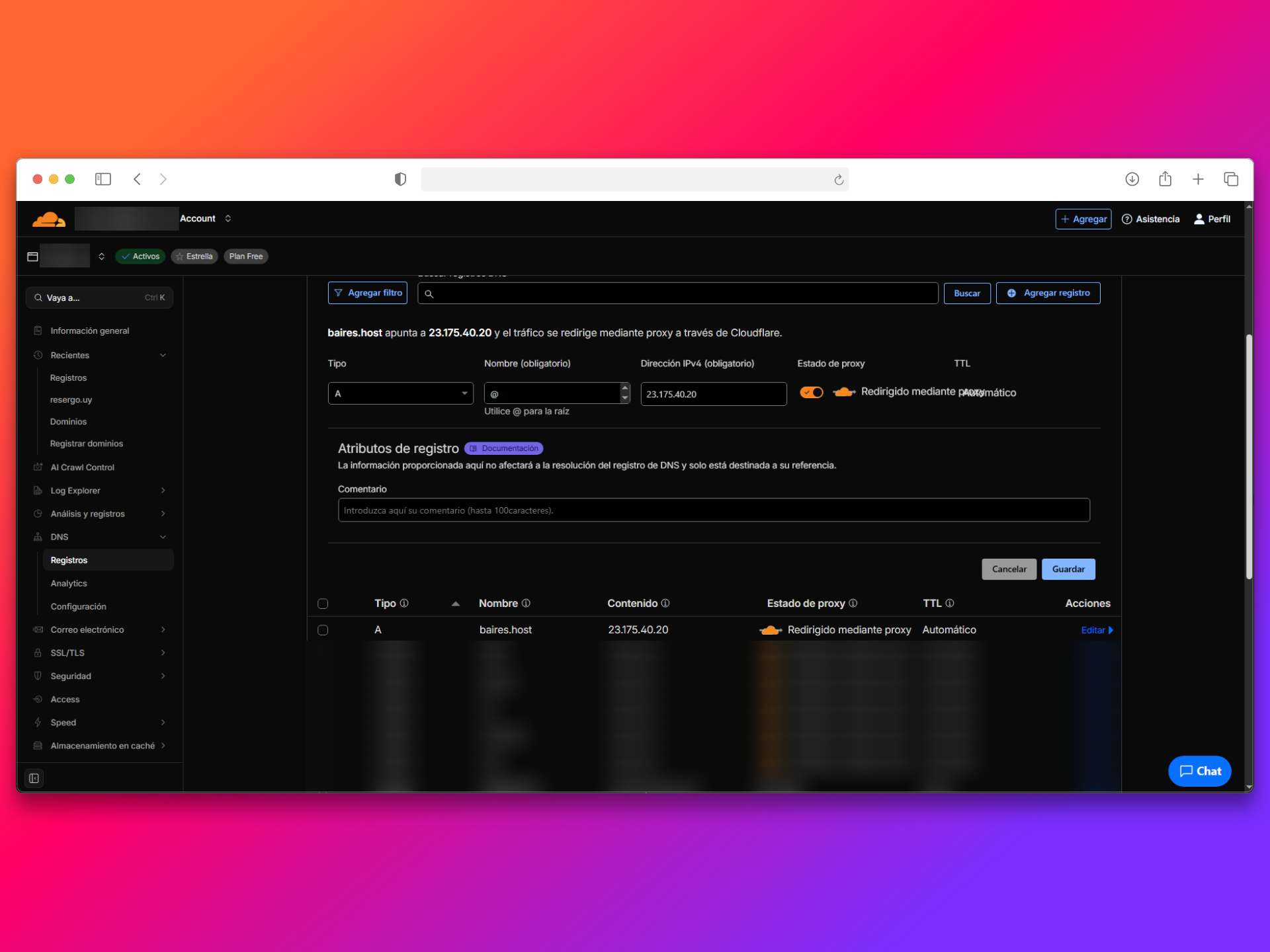 |
| Image 1: A record configuration example. |
AAAA Record (IPv6 Address)
The AAAA record is similar to A, but points to an IPv6 address instead of IPv4.
When to use it:
- If your server has an IPv6 address
- To support IPv6 connections
- Along with the A record for dual compatibility
How to configure it:
- Type: AAAA
- Name/Host:
@or the subdomain name - Value: Your server's IPv6 address (e.g.,
2001:0db8:85a3:0000:0000:8a2e:0370:7334) - TTL: 3600 seconds
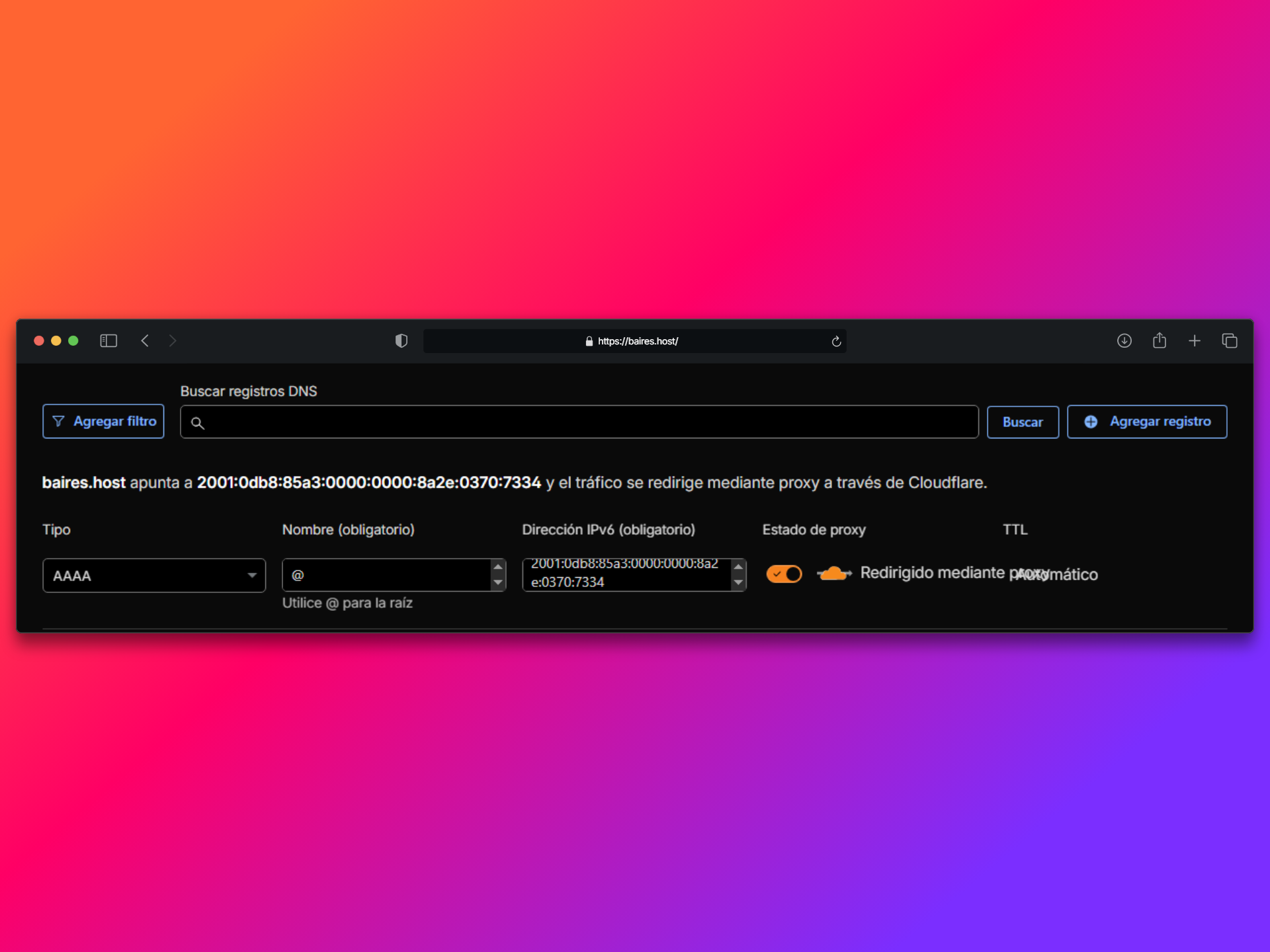 |
| Image 2: AAAA record configuration example. |
CNAME Record (Canonical Name)
The CNAME record creates an alias that points to another domain name or subdomain, instead of directly to an IP.
When to use it:
- To create subdomain aliases (e.g.,
wwwpointing to the main domain) - To point multiple subdomains to the same destination
- For external services (e.g., CDN, third-party services)
How to configure it:
- Type: CNAME
- Name/Host: The subdomain name (e.g.,
www,mail) - Value: The domain or subdomain it points to (e.g.,
yourdomain.comorserver.yourdomain.com) - TTL: 3600 seconds
Common example:
To make www.yourdomain.com point to yourdomain.com:
- Name:
www - Value:
yourdomain.com
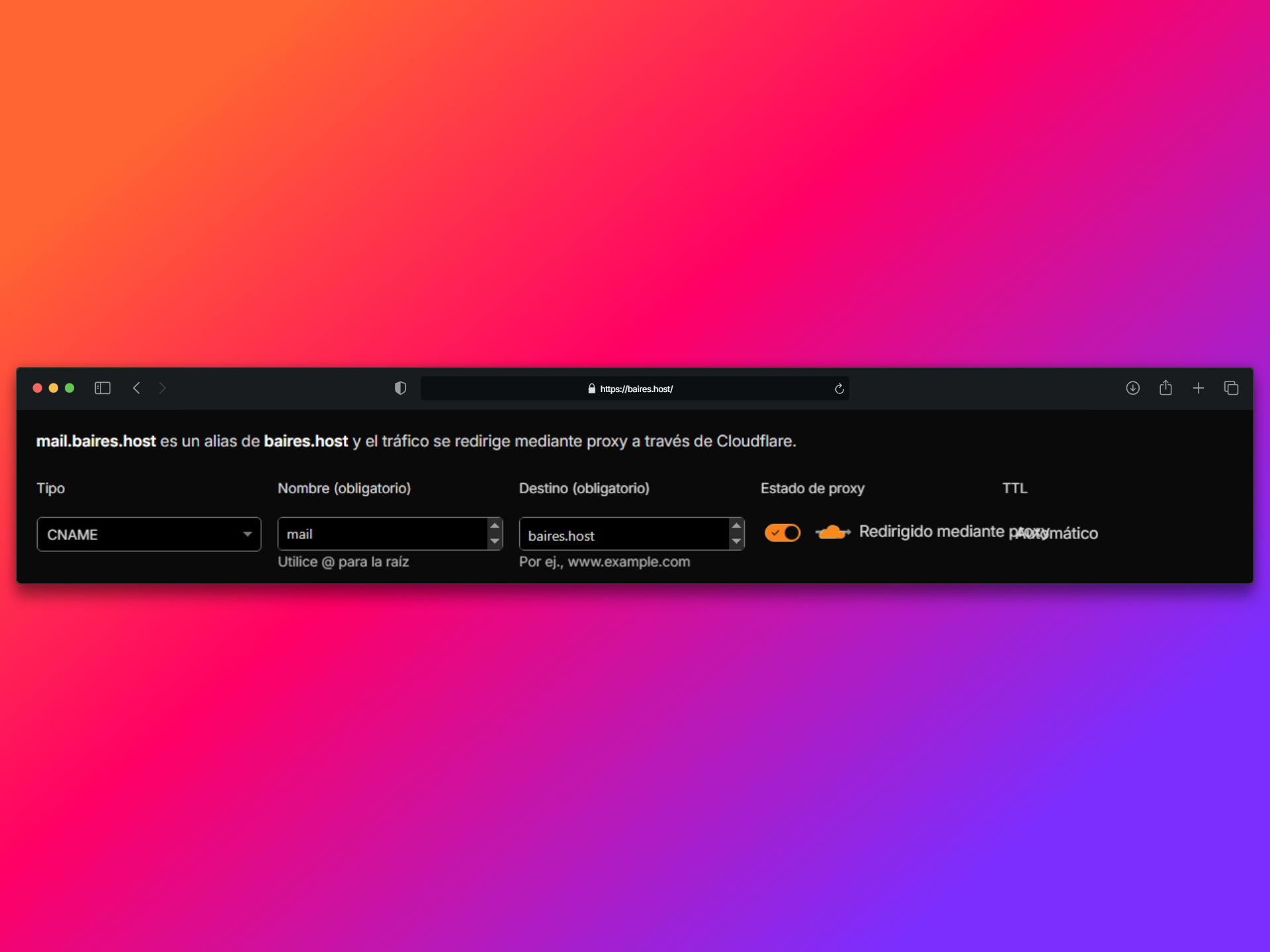 |
| Image 3: CNAME record configuration example. |
Step-by-step configuration
1. Access the DNS panel
- Log in to the panel where you manage your DNS (Cloudflare, cPanel, registrar, etc.)
- Look for the DNS or DNS Zone section
2. Add A record for main domain
- Click Add Record
- Select type A
- Name:
@ - Value: Your server's IP
- Save
3. Add CNAME record for www (optional)
- Click Add Record
- Select type CNAME
- Name:
www - Value:
yourdomain.com - Save
4. Add AAAA record (if your server has IPv6)
- Click Add Record
- Select type AAAA
- Name:
@ - Value: Your server's IPv6
- Save
Important rules
- ❌ You cannot have a CNAME record and an A record for the same name
- ✅ The CNAME record must point to a valid domain, not an IP
- ✅ The A record must point directly to an IP
- ✅ You can have multiple A records for load balancing
- ✅ The
@symbol represents the root domain
Common issues
Error creating CNAME
- Verify that an A record doesn't exist for the same name
- Make sure the value is a domain, not an IP
- Verify that the destination domain exists and has A records configured
Subdomain doesn't work
- Verify that the record is saved correctly
- Wait for DNS propagation to complete (can take up to 48 hours)
- Verify there are no syntax errors in the name or value
Conflict between A and CNAME
- Delete the A record if you want to use CNAME
- Or delete the CNAME if you prefer to use A directly
- You cannot have both for the same name
Tips
- ✅ Use A record for the main domain (@)
- ✅ Use CNAME for www and other subdomains pointing to the main domain
- ✅ Configure AAAA if your server supports IPv6
- ✅ Verify configuration with tools like
digornslookup - ✅ Keep TTL low (300-600) during changes, then increase it (3600+)
Need help?
If you have questions about which record type to use or how to configure it, open a ticket from the billing.baires.host panel or contact us for support.
You can also reach us through our social media:
- Instagram: @baires_host
- Discord (active support): https://discord.gg/dzjauatAFN
- Linktree: https://linktr.ee/baires.host


