
How to point a domain to your server
What does pointing a domain mean?
Pointing a domain to your server means configuring DNS records so that when someone types your domain in the browser, they are directed to your server's IP address where your website or application is hosted.
Prerequisites
Before you begin, you need to have:
- ✅ The domain registered
- ✅ Your server's IP address (for example:
23.175.40.20) - ✅ Access to your domain's DNS management panel (where you purchased the domain or where the nameservers are configured)
Method 1: Configure A and AAAA DNS records
Step 1: Access the DNS panel
- Log in to the control panel where you manage your domain (could be the registrar, Cloudflare, cPanel, etc.)
- Look for the DNS or DNS Zone section
Step 2: Add A record
- Click on Add Record or Add
- Select the A type
- Fill in the fields:
- Name/Host:
@or leave blank (for the main domain) orwww(for www.yourdomain.com) - Value/IP: Your server's IP (e.g.,
23.175.40.20) - TTL: Leave the default value (usually 3600 seconds)
- Name/Host:
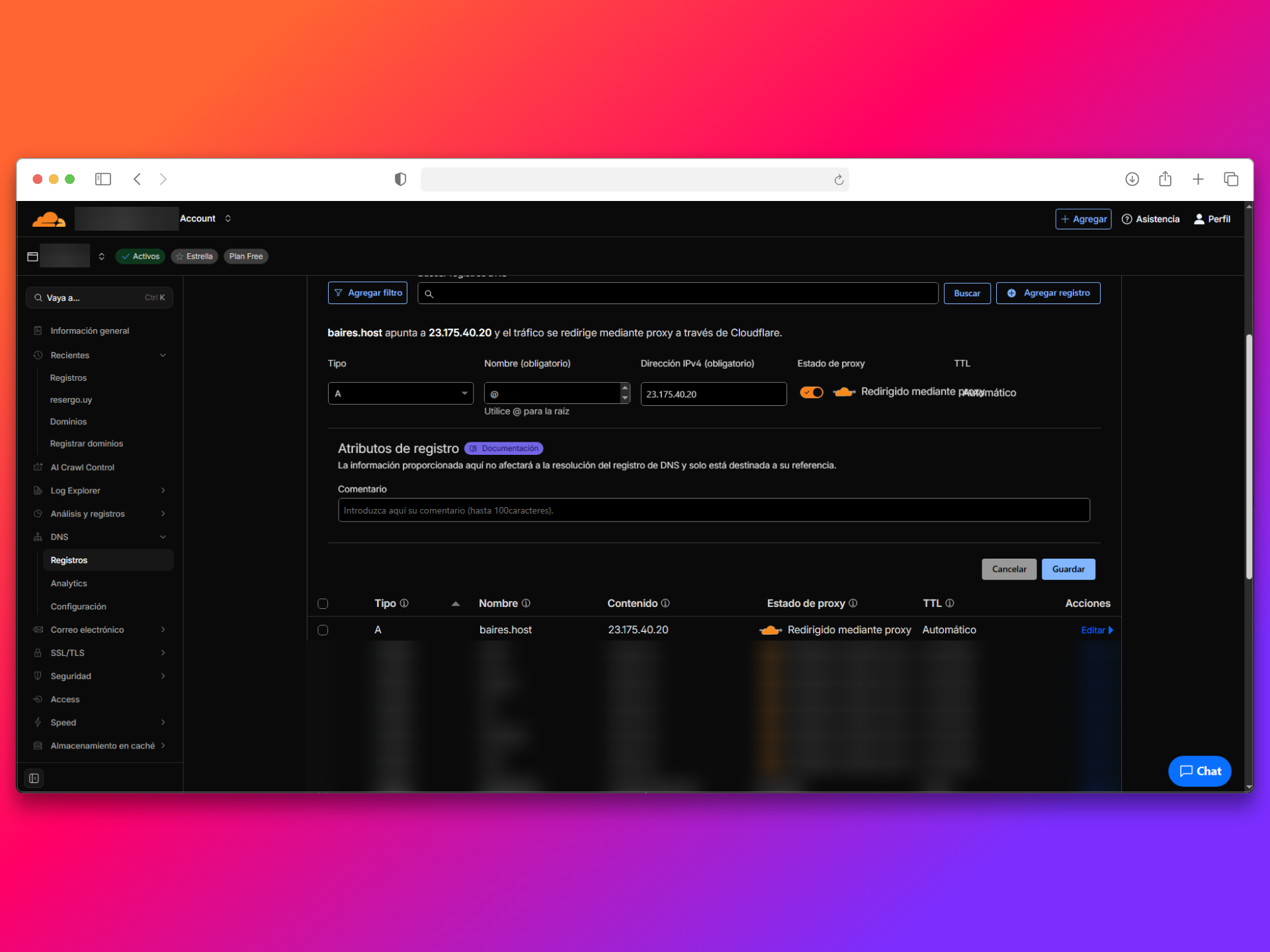 |
| Image 1: A record configuration example. |
Step 3: Add AAAA record (optional, for IPv6)
If your server has an IPv6 address, you can also add an AAAA record:
- Add a new AAAA type record
- Name/Host:
@orwww - Value: Your server's IPv6 address
- TTL: Default value
Step 4: Save changes
Click Save or Submit. Changes can take anywhere from a few minutes to 48 hours to propagate (usually it's faster, between 15 minutes and 2 hours).
Method 2: Change nameservers
If you prefer baires.host to completely manage DNS, you can change the nameservers:
Step 1: Get the nameservers
Contact us to get baires.host nameservers.
Step 2: Configure nameservers in your registrar
- Log in to your domain registrar's panel
- Look for the Nameservers or DNS Servers section
- Change the current nameservers to the ones we provided
- Save the changes
Note: This method can take up to 48 hours to fully propagate.
Verify that the domain points correctly
Option 1: Use ping command
Open the terminal or command prompt and run:
ping yourdomain.comYou should see your server's IP in the response.
Option 2: Use online tools
You can use tools like:
- whatsmydns.net - View DNS propagation in real time
- dnschecker.org - Check DNS records globally
- mxtoolbox.com - DNS diagnostic tools
Option 3: Verify from browser
- Wait for DNS propagation to complete
- Open your browser and type your domain
- You should see your website or your server's welcome page
Configure subdomain
If you want to point a subdomain (for example: blog.yourdomain.com):
- Add a new A record
- Name/Host:
blog(without the dot or domain) - Value/IP: The same server IP
- Save the changes
Common issues
Domain doesn't resolve after several hours
- Verify that the IP is correct
- Check that DNS records are saved correctly
- Wait up to 48 hours (propagation can be slow in some cases)
- Verify there are no syntax errors in the records
"DNS_PROBE_FINISHED_NXDOMAIN" error
- The domain is not configured correctly in the nameservers
- Verify that A records are created
- Wait for DNS propagation to complete
Domain points to another IP
- Verify that you saved the changes in the DNS panel
- Clear your computer's DNS cache:
ipconfig /flushdns(Windows) orsudo dscacheutil -flushcache(macOS) - Wait a few minutes and verify again
Tips
- ✅ Always verify your server's IP before configuring
- ✅ Use
@for the main domain andwwwfor the www subdomain - ✅ Low TTL (300-600 seconds) is useful if you change IPs frequently
- ✅ High TTL (3600+ seconds) improves performance but makes changes slower
Need help?
If you're having trouble configuring your domain or don't know which IP to use, open a ticket from the billing.baires.host panel or contact us for support.
You can also reach us through our social media:
- Instagram: @baires_host
- Discord (active support): https://discord.gg/dzjauatAFN
- Linktree: https://linktr.ee/baires.host


