
How to access phpMyAdmin
What is phpMyAdmin?
phpMyAdmin is a free, open-source web tool that allows you to manage MySQL and MariaDB databases visually, without needing to use the command line. It's the most popular tool for managing databases on web servers.
Prerequisites
To access phpMyAdmin you need:
- ✅ A server with phpMyAdmin installed (usually included in cPanel, Plesk, or LAMP/LEMP installations)
- ✅ Database access credentials (username and password)
- ✅ Access to your control panel or the phpMyAdmin URL
Method 1: Access from cPanel
Step 1: Log in to cPanel
- Go to your cPanel URL (usually:
https://yourdomain.com:2083orhttps://yourdomain.com/cpanel) - Log in with your cPanel username and password
Step 2: Open phpMyAdmin
- In the Databases section, look for and click on the phpMyAdmin icon
- phpMyAdmin will open in a new tab or window
 |
| Image 1: Access phpMyAdmin from cPanel. |
Step 3: Log in to phpMyAdmin
If phpMyAdmin asks for credentials:
- Username: Your database username (not your cPanel username)
- Password: Your database password
- Server: Usually
localhost(leave as default)
Method 2: Access directly via URL
Step 1: Get the phpMyAdmin URL
The URL may vary depending on your configuration:
- cPanel:
https://yourdomain.com/phpmyadminorhttps://yourdomain.com:2083/phpmyadmin - Plesk:
https://yourdomain.com:8443/phpmyadmin - Direct installation:
https://yourdomain.com/phpmyadminor the path you configured
Step 2: Access the URL
- Open your web browser
- Enter the phpMyAdmin URL in the address bar
- Press Enter
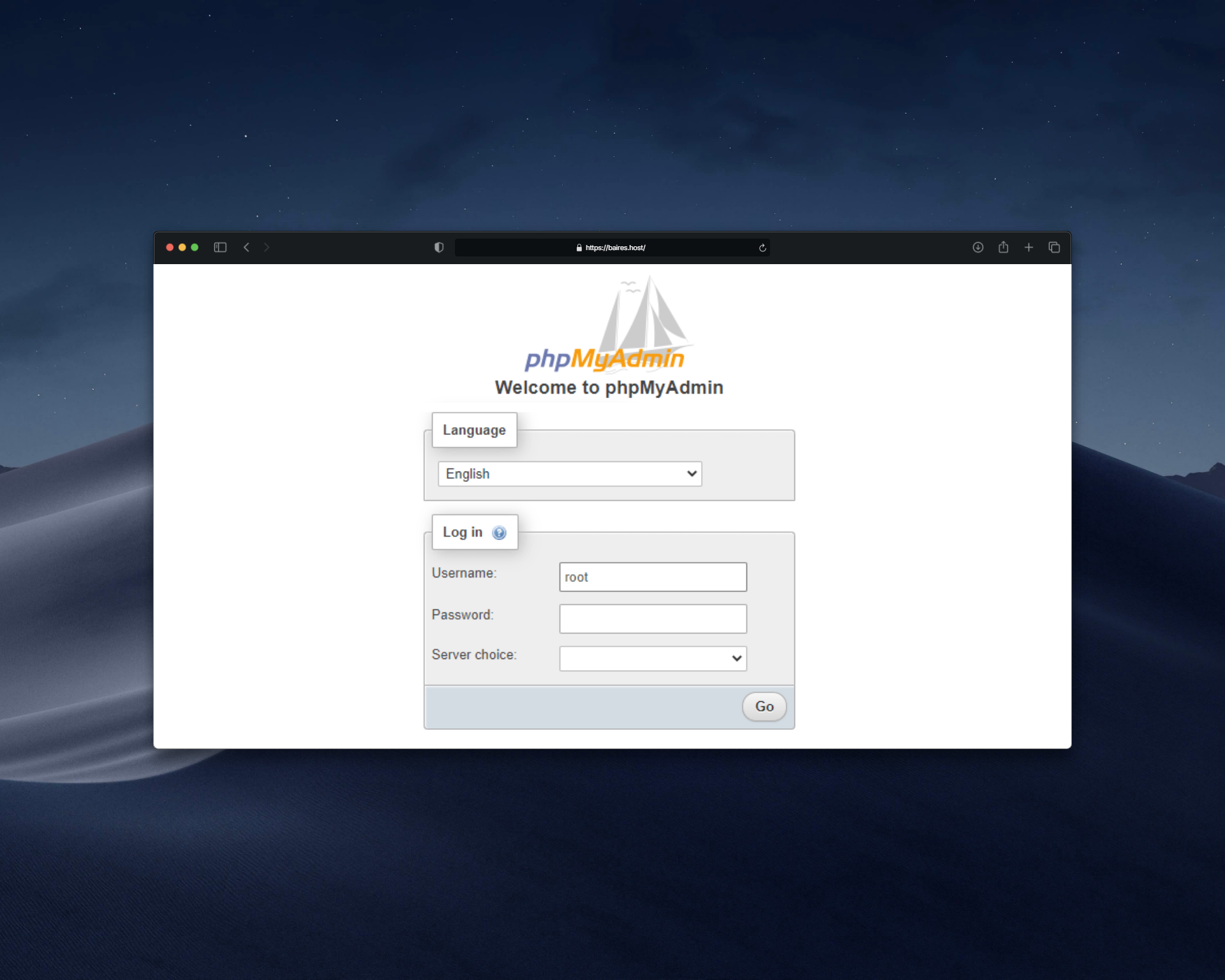
Step 3: Log in
Enter your credentials:
- Username: Your database username
- Password: Your database password
- Click Log in or Go
 |
| Image 2: phpMyAdmin login screen. |
Method 3: Access from Plesk
Step 1: Log in to Plesk
- Go to your Plesk URL (usually:
https://yourdomain.com:8443) - Log in with your credentials
Step 2: Open phpMyAdmin
- In the side menu, look for Databases
- Click on phpMyAdmin
- It will open in a new window
phpMyAdmin interface
Once inside phpMyAdmin, you'll see:
Left panel
- List of all your databases
- You can expand each database to see its tables
Center panel
- Information about the selected database
- Tools to manage tables, run queries, import/export, etc.
Top menu
- Home: Return to home
- SQL: Execute SQL queries
- Status: View server statistics
- Users: Manage database users
- Export: Export databases
- Import: Import databases
First steps in phpMyAdmin
View available databases
In the left panel, you'll see all databases you have access to. Click on one to see its tables.
View table structure
- Click on a database in the left panel
- Click on a table to see its structure
- You'll see columns, data types, indexes, etc.
Execute an SQL query
- Click on the SQL tab in the top menu
- Write your SQL query
- Click Go or Continue
Common issues
"Access denied" error
- Verify that the username and password are correct
- Make sure you're using database credentials, not cPanel/Plesk credentials
- Verify that the user has permissions to access from phpMyAdmin
"Cannot connect to MySQL server" error
- Verify that the MySQL service is running on the server
- Check that phpMyAdmin configuration is correct
- Contact support if the problem persists
phpMyAdmin doesn't load or shows 404 error
- Verify that the URL is correct
- Make sure phpMyAdmin is installed on your server
- Check file permissions
I can't see my databases
- Verify that the user has permissions on the databases
- Make sure you're using the correct user
- Some databases may be hidden if you don't have permissions
Security tips
- ✅ Don't share your database credentials
- ✅ Use strong passwords for your databases
- ✅ Access phpMyAdmin only from secure connections (HTTPS)
- ✅ Log out when you finish using phpMyAdmin
- ✅ Consider restricting phpMyAdmin access by IP if possible
Alternatives to phpMyAdmin
If phpMyAdmin is not available or you prefer other tools:
- Adminer: Lightweight tool similar to phpMyAdmin
- MySQL Workbench: Graphical client for Windows, Mac, and Linux
- HeidiSQL: MySQL client for Windows
- Command line: Using
mysqlfrom the terminal
Need help?
If you can't access phpMyAdmin or have problems with your databases, open a ticket from the billing.baires.host panel or contact us for support.
You can also reach us through our social media:
- Instagram: @baires_host
- Discord (active support): https://discord.gg/dzjauatAFN
- Linktree: https://linktr.ee/baires.host


