
How to access cPanel for the first time
What is cPanel?
cPanel is one of the most popular control panels for managing web servers and hosting. It allows you to manage your website, databases, email, files and many other functions visually and easily, without needing to use the command line.
Prerequisites
To access cPanel you need:
- ✅ A hosting service that includes cPanel (most shared hosting and VPS plans include it)
- ✅ Access credentials (username and password) that were provided to you by email when you purchased the service
- ✅ The cPanel access URL (usually sent to you by email)
Step 1: Get the access URL
The cPanel URL may vary depending on your provider. Generally it's one of these options:
https://yourdomain.com:2083(secure port)https://yourdomain.com/cpanelhttps://cpanel.yourdomain.comhttps://server-IP:2083(using IP directly)
Note: Check the welcome email you received when you purchased the service, the exact URL should be there.
Step 2: Open the URL in browser
- Open your preferred web browser (Chrome, Firefox, Edge, Safari, etc.)
- Copy and paste the cPanel URL in the address bar
- Press Enter
Step 3: Accept security warning (if it appears)
The first time you access, you may see a security warning about the SSL certificate. This is normal when using port 2083 with a self-signed certificate.
In Chrome/Edge:
- Click Advanced
- Click Proceed to yourdomain.com (unsafe)
In Firefox:
- Click Advanced
- Click Accept the Risk and Continue
Important: This warning is normal on first connection. If you want to remove it, you can install a valid SSL certificate.
Step 4: Log in
Once the cPanel login page loads, enter your credentials:
- Username: Your cPanel username (usually the same as FTP or your account name)
- Password: Your cPanel password
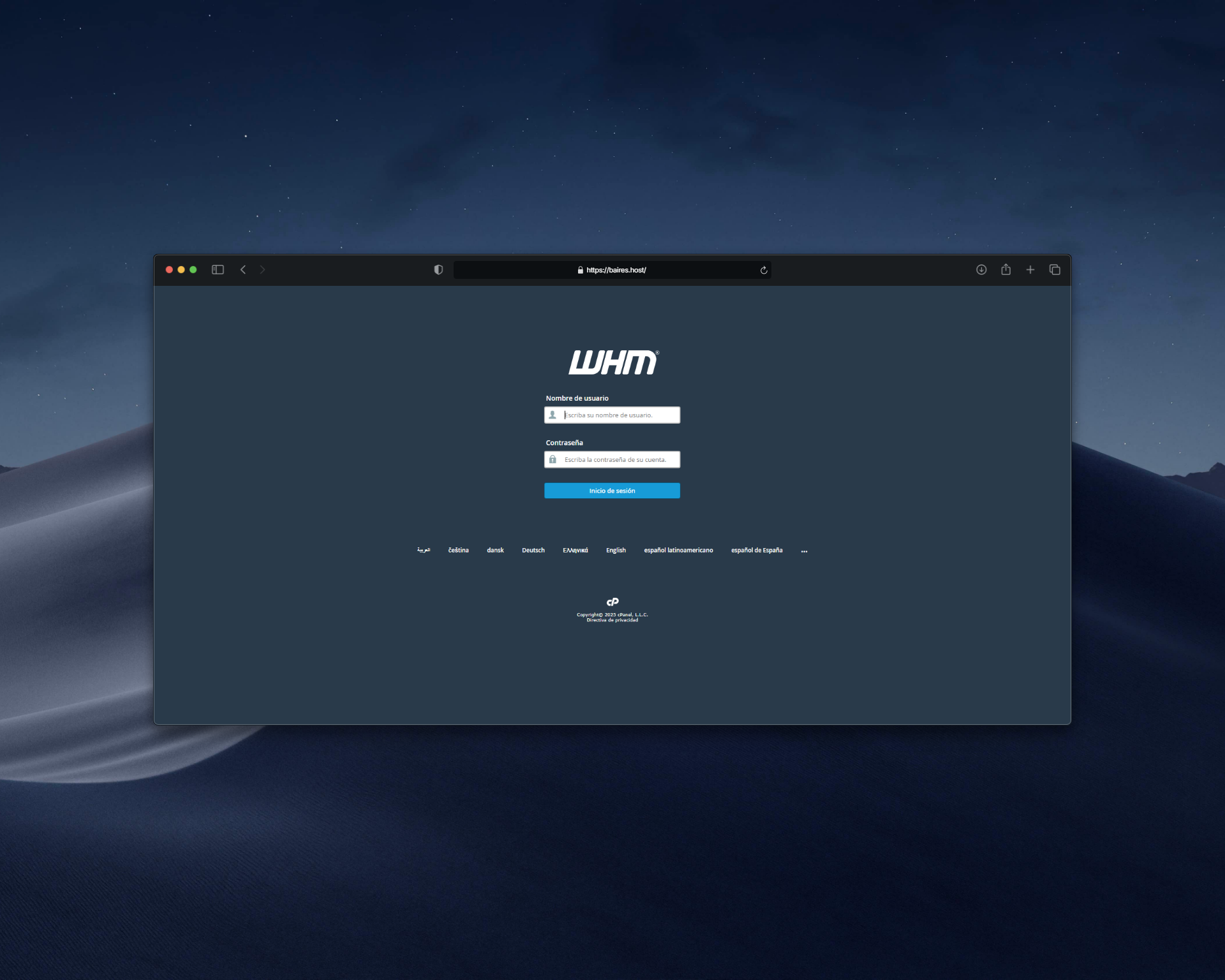 |
| Image 2: cPanel login screen. |
Click Log in
Step 5: Explore cPanel
Once you log in, you'll see the main cPanel dashboard with all available sections:
Main sections:
- Files: File Manager, FTP, Backup
- Databases: MySQL Databases, phpMyAdmin, Remote MySQL
- Domains: Addon Domains, Subdomains, Redirects
- Email: Email Accounts, Email Routing, Autoresponders
- Security: SSL/TLS, IP Blocker, SSH Access
- Software: PHP Selector, Installatron, Softaculous
- Statistics: Awstats, Webalizer, Visitors
- Advanced: Cron Jobs, Error Pages, Apache Handlers
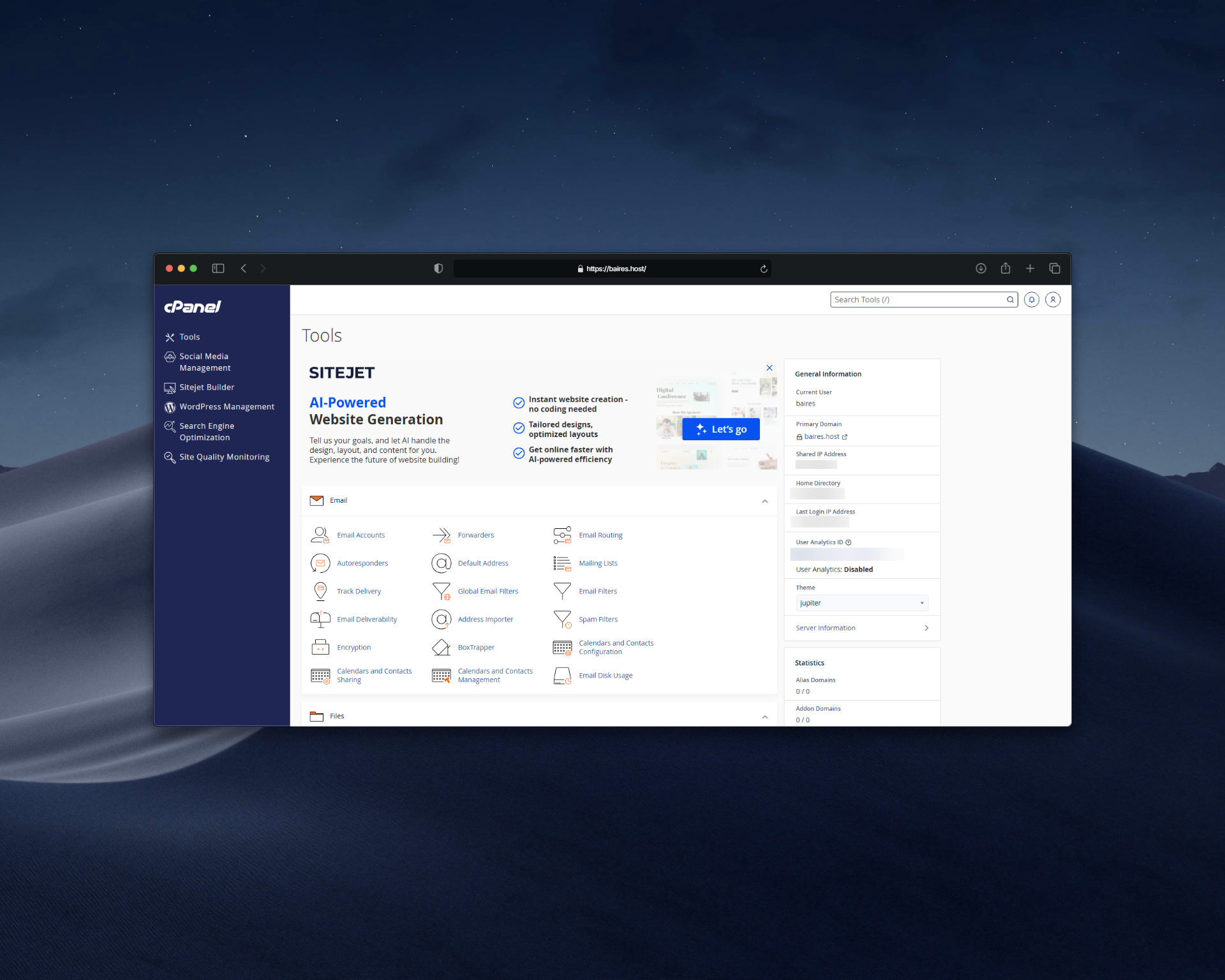 |
| Image 3: Main cPanel view. |
Recommended first steps
1. Change your password
For security, it's recommended to change the password you were given:
- Look for the Preferences section
- Click Change Password
- Enter your current password and the new one
- Save changes
2. Configure your domain
If you haven't configured your domain yet:
- Look for the Domains section
- Verify that your domain is listed
- If you need to add an additional domain, use Addon Domains
3. Create an email account
To create your first email account:
- Look for Email Accounts
- Click Create
- Complete the form with name and password
Common problems
I can't access the URL
- Verify that the URL is correct (check the welcome email)
- Make sure you're using
https://and nothttp:// - Verify that your internet connection works
- Try from another browser
Error "Incorrect username or password"
- Verify you're using the correct credentials (check the email)
- Make sure Caps Lock is not activated
- Verify there are no spaces before or after username/password
- If you forgot the password, contact support to reset it
Page doesn't load or takes too long
- Verify your internet connection
- Clear browser cache
- Try from another browser or device
- If the problem persists, contact support
Security warning that doesn't disappear
- This is normal with self-signed certificates
- You can install a valid SSL certificate (Let's Encrypt is free)
- Or simply accept the warning each time (it's safe if you trust your provider)
Security tips
- ✅ Change your password regularly
- ✅ Use strong passwords (minimum 12 characters, with letters, numbers and symbols)
- ✅ Don't share your cPanel credentials
- ✅ Log out when you finish using cPanel
- ✅ Consider enabling two-factor authentication (2FA) if available
Need help?
At baires.host we offer hosting with cPanel included and specialized technical support. Our team can help you access cPanel, configure your account and resolve access problems.
Services we offer:
- ???? Shared hosting with cPanel included
- ???? VPS with optional cPanel
- ???? Specialized technical support
- ???? Assistance to configure your account
- ???? Free SSL certificates (Let's Encrypt)
- ☁️ Daily automatic backups
If you can't access cPanel or have problems with your credentials, open a ticket from the billing.baires.host panel or contact us for support.
You can also reach us through our networks:
- Instagram: @baires_host
- Discord (active support): https://discord.gg/dzjauatAFN
- Linktree: https://linktr.ee/baires.host
Powered by baires.host - Your trusted hosting in Argentina


